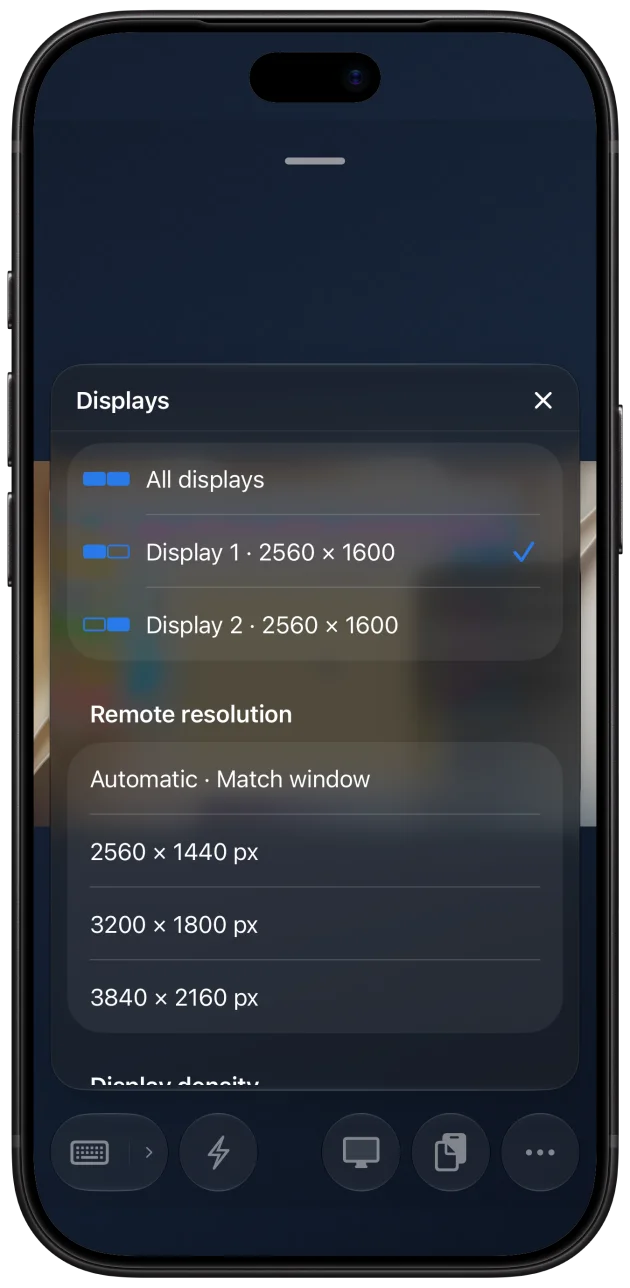
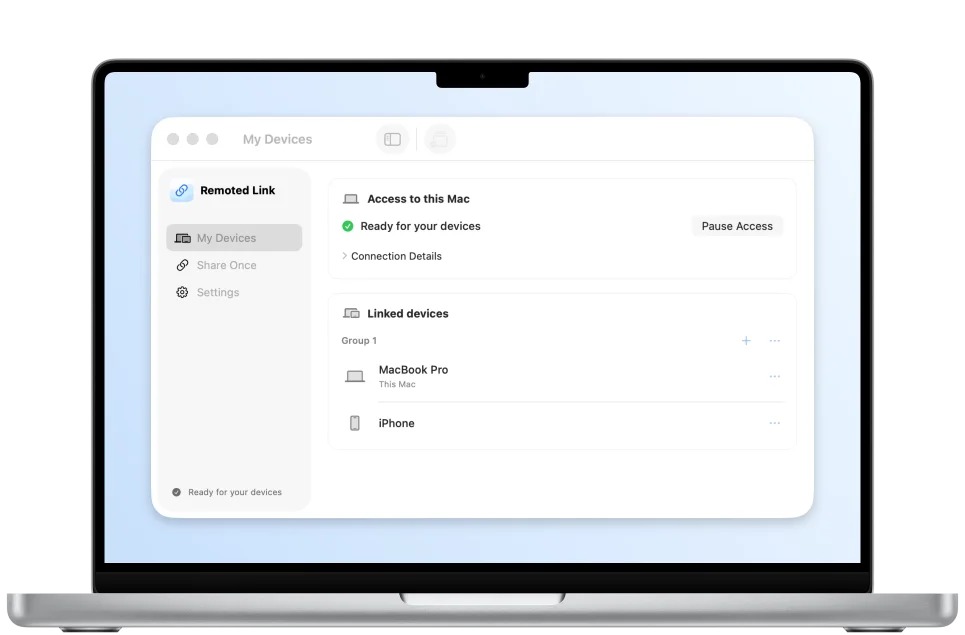
Remote access troubleshooting
Can’t reach your Mac after sleep or restart?
Find out whether your Mac is asleep, offline, or waiting for a FileVault unlock, then take the next step without guessing at your network settings.
Match the symptom to the next check
| What you see | What to check |
|---|---|
| Display off or screen locked | Try connecting while the Mac is awake. A dark display or an ordinary Lock Screen can coexist with a running desktop. |
| Works after someone wakes the Mac | Test sleep separately. If the same network and Mac work as soon as it wakes, start with the Mac’s sleep settings. |
| Works at home only | Confirm the linked Mac works over Remoted Link from a phone hotspot or check the private VPN route you use. Keep the Mac awake during this test. |
| Stopped after a restart | Check for the first FileVault unlock and sign in locally if needed. If the Mac still fails after sign-in, check that Screen Sharing and Link are available. |
Test sleep with one variable at a time
With the Mac awake, open a session. Disconnect, put the Mac to sleep and try again from the same device and network. If connecting only works after a local wake, check Wake for network access in Energy on desktops or Battery → Options on Mac laptops that offer it.
Wake for network access is a macOS option, and its behavior depends on your hardware and network. If you need the Mac reachable while idle, consider preventing automatic sleep when its display is off. Check laptop behavior on power and with the lid in the position you actually use.
Recover after a restart or a power cut
The FileVault startup prompt unlocks the startup disk. Remoted Link can enable desktop access once macOS and the signed-in user session are ready. If you’re already away and the Mac is waiting at startup, use a recovery method you set up ahead of time or ask someone with authorized local access to help.
On Apple silicon with macOS 26 or later, Apple supports unlocking FileVault over SSH after a restart when Remote Login was enabled beforehand and the startup network is available. This uses Apple’s Remote Login service. Read Apple’s startup network requirements, and test over a trusted network while you still have local access.
For a preboot SSH test, record the Mac’s local address before restarting. Use a trusted wired LAN when available and keep SSH access on the local network or a separately reachable private route. A VPN app running only on the Mac that is waiting to unlock can’t provide that route.
From another device on that network, connect over SSH with a Mac account that can unlock FileVault. Use that account’s password at the startup prompt. A brief disconnect is expected while macOS mounts the disk and starts its services. A successful unlock still leaves you to verify that the desktop is reachable.
Before you leave
Test the Mac from another network while it is awake, then repeat with the screen locked. Save your work and test sleep and restart separately while you can recover locally. Make sure you know who can reach the Mac if power or networking fails.