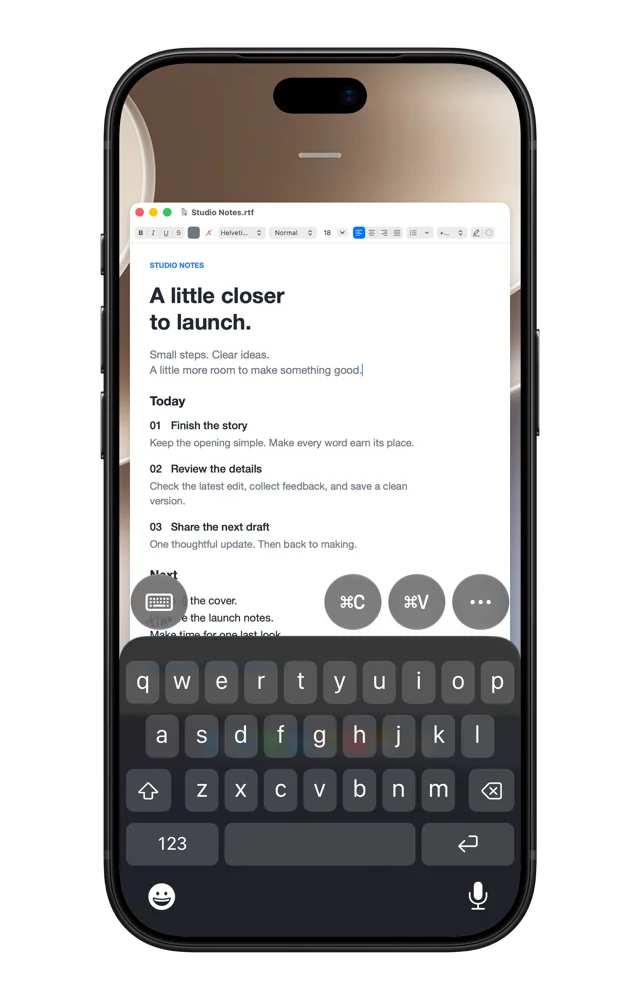
Remote access
Connect anywhere with Remoted Link
Link your devices, share temporary access and make the desktop fit your screen.
Before you start
You need Remoted on iPhone or iPad with iOS or iPadOS 26.5 or later, and Remoted Link on a Mac with macOS 26 or later. Keep the Mac awake and online. Connecting requires Remoted Complete; prices and trial eligibility appear in the app.
1. Install and link your devices
- Download and unzip Remoted Link. Move it to Applications, then open it.
- Follow the Mac setup steps for Screen Sharing and background access. Access stays off until you enable or share it.
- Choose Add Device, then open the invitation or scan its QR code with Remoted on your iPhone or iPad. Allow access when you are ready.
2. Test away from home
- Connect from Remoted and sign in with the permitted Mac account. Then test from cellular data or another internet connection, leaving the Mac online.
Automatic resolution: a desktop that fits
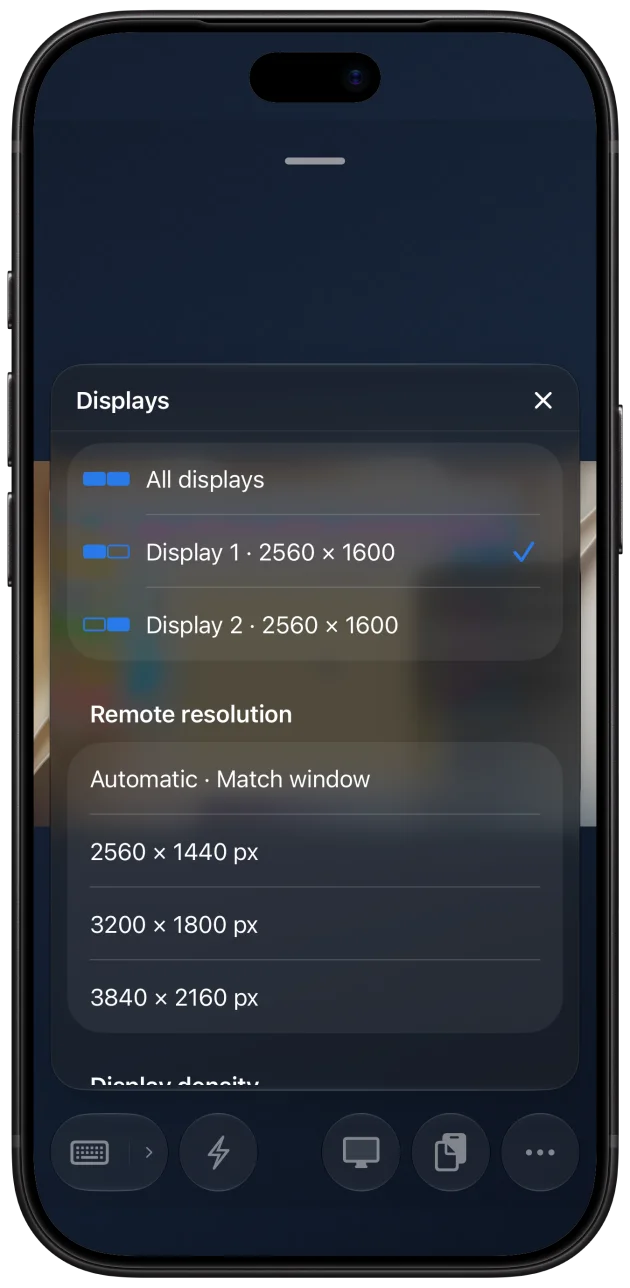
In a supported High Performance session with one virtual display, choose Display → Automatic · Match window. Resizing the iPad window can then change the remote desktop’s resolution, rather than only stretching its image. Standard and two-display sessions do not offer the same automatic resizing.
Preview builds can also resize the existing Mac desktop through a compatible Link host. This newer console behavior is separate from the one-virtual-display feature in App Store 1.1.2. Use only the display options offered by your installed versions.
For a steady workspace, choose a fixed resolution instead. A lower resolution can reduce the amount of video to send. Density controls the logical size of interface elements; 2× is not a promise of faster streaming.
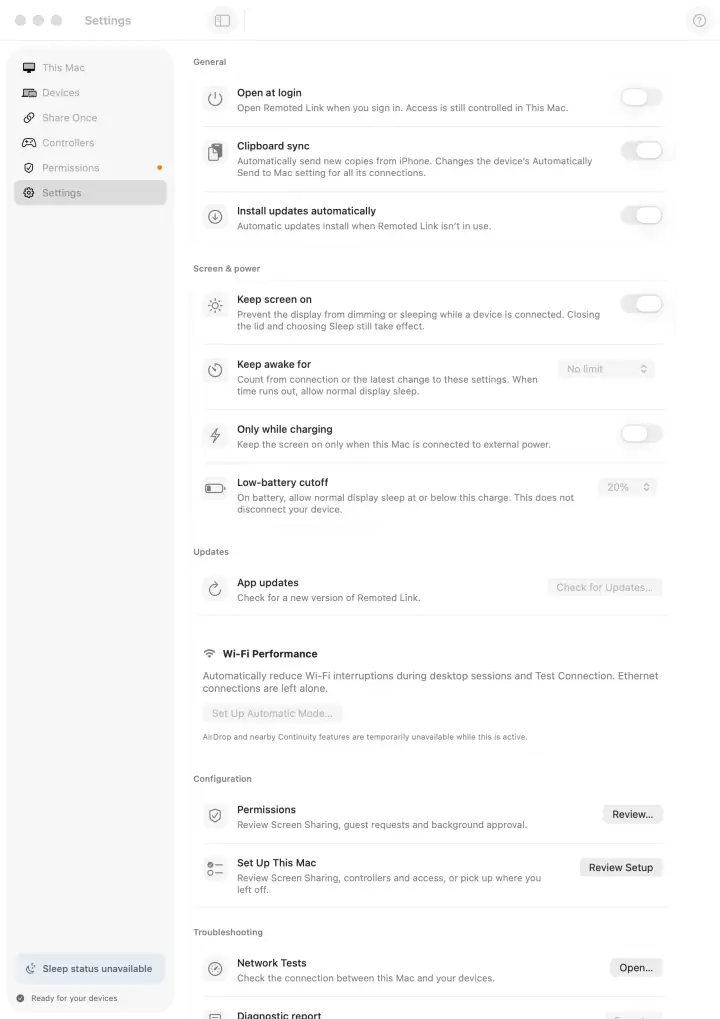
If something does not work
- Check that Link access is enabled, both devices are online and Screen Sharing permits the Mac account you use.
- Update both apps. If an invitation expired, create a new one. Never send an invitation, QR code or password to support.
- If automatic resolution is unavailable, check the connection mode and display count. Try a fixed size or Standard mode to narrow down the problem. Do not expose Screen Sharing to the public internet.