Mac mini setup
Control a headless Mac mini from your iPad, at home or away
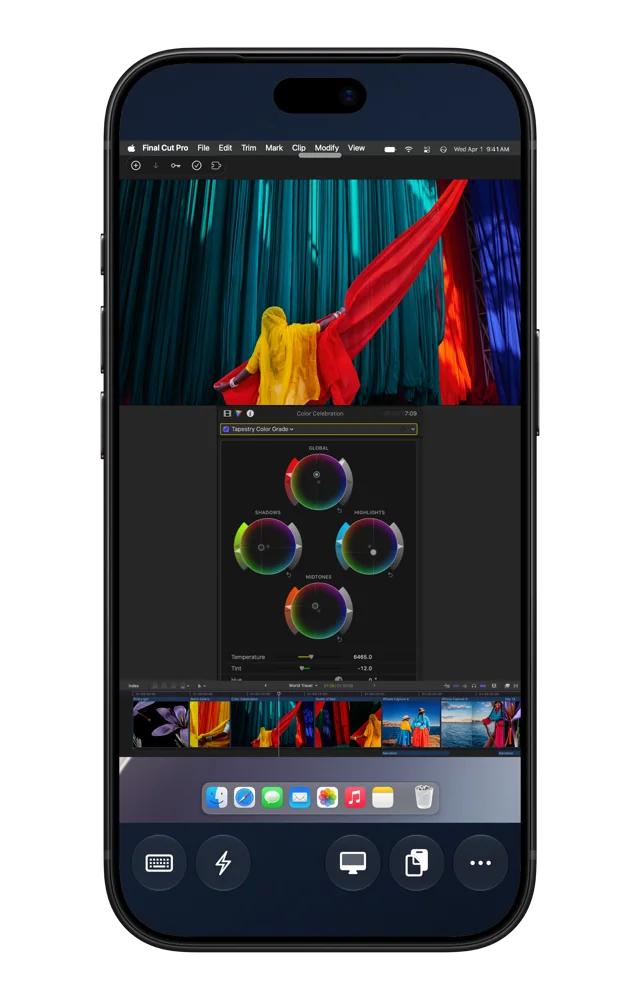
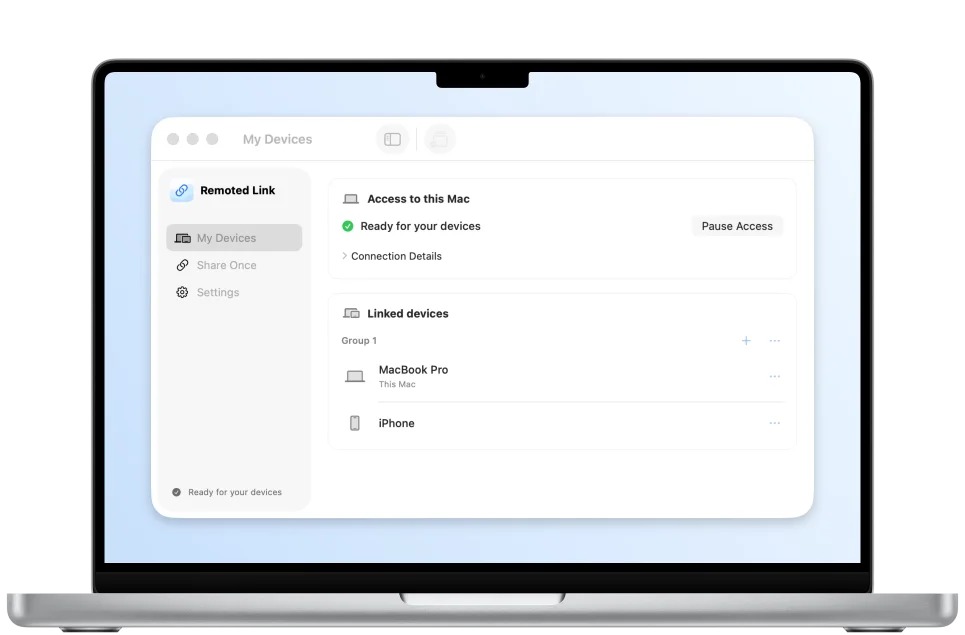
You can control a Mac mini without a monitor using Remoted on iPadOS 26.5 or later. Use Screen Sharing at home, or pair with Remoted Link before you leave to connect over the internet.
Set up your first connection
Connections require Remoted Complete.
- Start with a monitor, keyboard and mouse attached to the Mac mini. Finish macOS setup, then enable Screen Sharing in System Settings → General → Sharing and allow the Mac account you’ll use. Screen Sharing and Remote Management are mutually exclusive in macOS.
- Open the Mac desktop in Remoted while the iPad is on the same trusted network. Open Finder and type in its search field to confirm you have control.
Test with the monitor unplugged
- Disconnect the remote session, unplug the monitor cable and reconnect. Turning off the monitor alone may leave it detected by the Mac. Open Finder and use its search field to confirm that both clicks and typing reach the Mac.
- If the text is too small or the desktop doesn’t fill the window, check the session’s Display options. In a supported High Performance session with one virtual display, try Automatic · Match window and resize the iPad window. For a steadier workspace, try a fixed resolution offered by your session.
Test access from outside your home
macOS 26 or later · Apple silicon and Intel · Signed and notarized
- While you still have local access, install Remoted Link on the Mac, allow it to run in the background and approve pairing with your iPad.
- Leave the Mac awake and connected to the internet, ideally over Ethernet. Switch the iPad from home Wi-Fi to a phone hotspot or another network. Open the linked Mac in Remoted and verify that the desktop opens and you can click and type.
Sleep, the Lock Screen and FileVault after restart
Test again with the Mac locked but awake. If it goes offline when it sleeps, review System Settings → Energy and consider preventing automatic sleep when the display is off.
After a restart or power loss, FileVault can stop the Mac at a startup unlock prompt. Remoted Link needs macOS to finish starting before it can provide desktop access. Save your work and test a restart while you’re still beside the Mac, with a monitor and keyboard ready in case you need to unlock it locally.