Native Touch
How the MacBook Pro touchscreen works and how to try direct touch on iPad
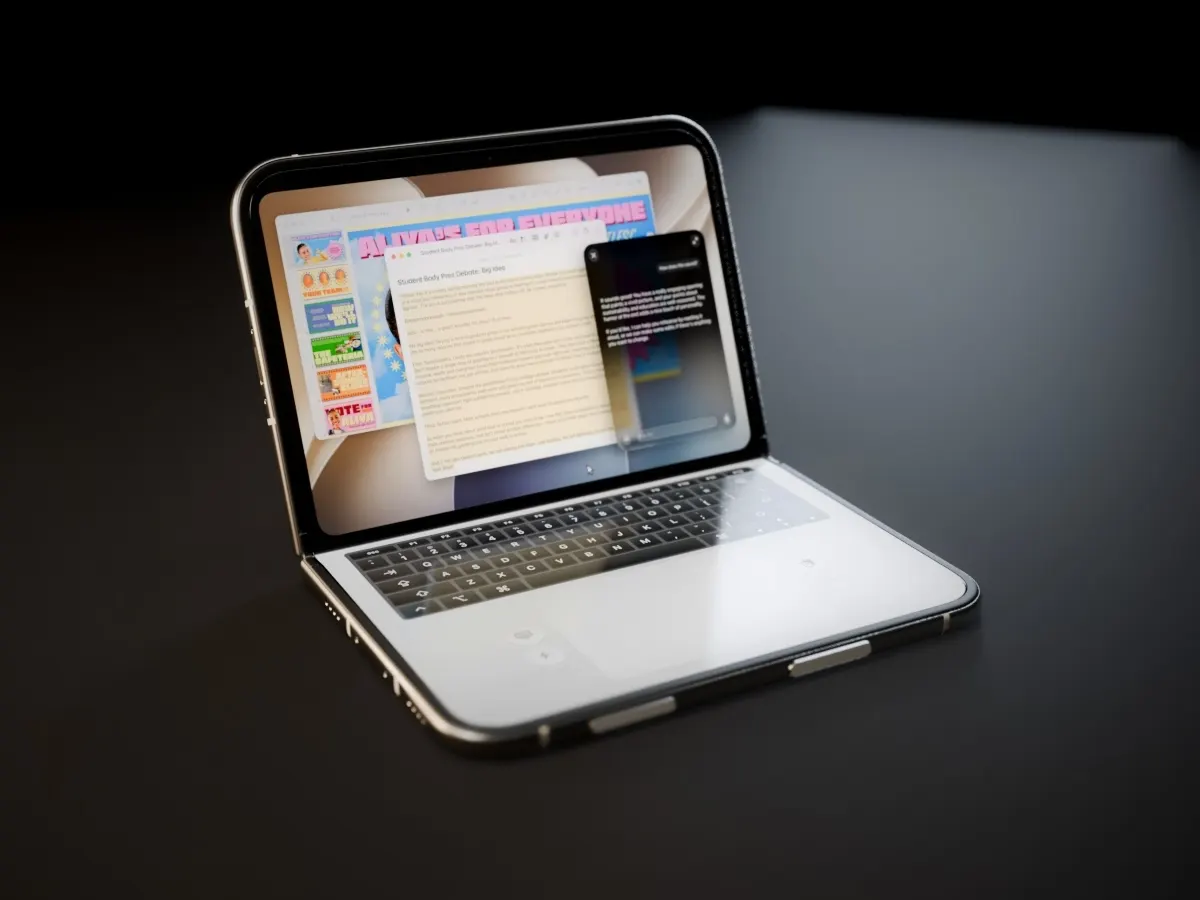
Apple built a touch sensor into the MacBook Pro display. Here’s how macOS handles that input and how Remoted brings direct touch to your Mac apps from iPad and iPhone.
How the MacBook Pro touchscreen works
- 14.2-inch PROLED XDR model at 3024 × 1986 pixels.
- 16.3-inch PROLED XDR model at 3472 × 2266 pixels.
- Both displays support Multi-Touch and an adaptive 10–120 Hz ProMotion refresh rate.
Apple builds the touch sensor into the MacBook Pro’s tandem OLED panel. It detects where your fingers land and how they move. On macOS 27, apps can use gesture recognizers to respond to actions such as a pinch or drag, and macOS can translate a tap into a click for existing apps.
How Remoted brings Mac touch to iPad and iPhone
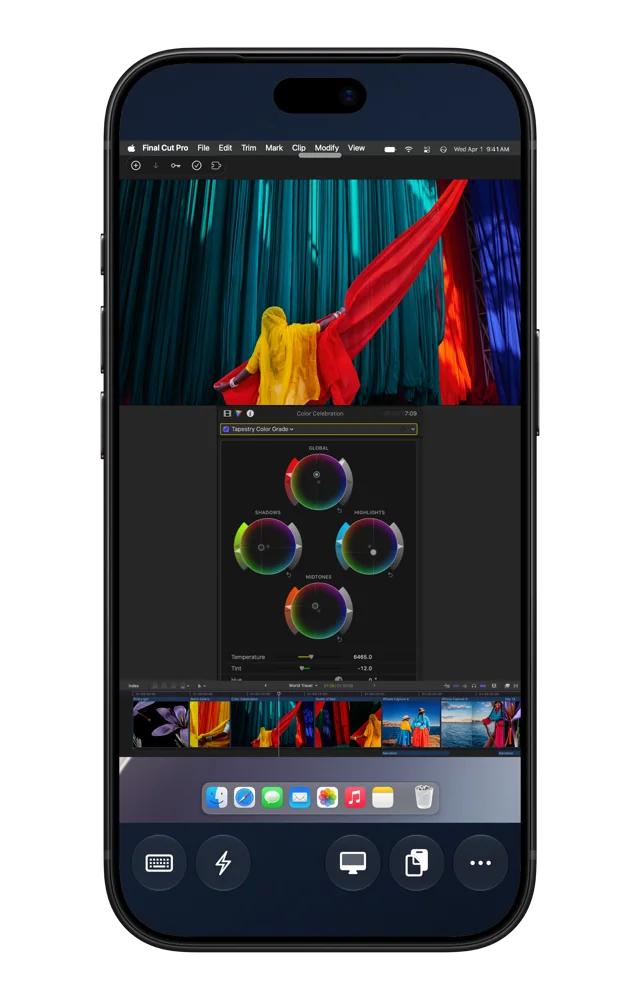
Your iPad or iPhone detects when up to two fingers land, move and lift. Remoted maps those positions to the selected Mac display and sends them through encrypted Screen Sharing. The Mac presents the input as touches on that display, and the app responds to the gestures it supports. Remoted streams the updated desktop back to your device, so how quickly you see the response depends in part on the connection.
On iPad, the larger screen gives you room to drag an item or pinch content right where you see it. Use the same mode on iPhone for quick taps and adjustments. A Mac without a built-in touchscreen can also work when it meets the session requirements below.
What you need
Use Remoted 1.2.6 or later and a Mac running macOS 27.3 or later. You need a compatible encrypted Screen Sharing session with control access, either directly or through Remoted Link.
Discovering and organizing Macs is free. Connections require Remoted Complete: monthly, annual or lifetime. Prices and trial eligibility are shown in the app before purchase.
Turn on Native Touch
- Connect to the Mac’s Current desktop and select one display. If the Mac has multiple monitors, choose the one you want to control.
- Open Control Mode in the session toolbar and choose Native Touch.
Use gestures on iPad
Try direct touch in a Mac app. Drag an item with one finger, then try a two-finger pinch in an app that supports it. Pinch on the minimap to zoom the remote view.
Tap with three fingers to switch between Native Touch and Trackpad.
If touch isn’t working
If you only see Touch, check the session requirements above and select a single display.
If taps land off target on a scaled monitor, open Control Mode → Touch Alignment and enter the monitor’s native resolution in pixels. Remoted reconnects when you save.