Duo · Laptop Mode on iPhone Duo
Laptop Mode on iPhone Duo
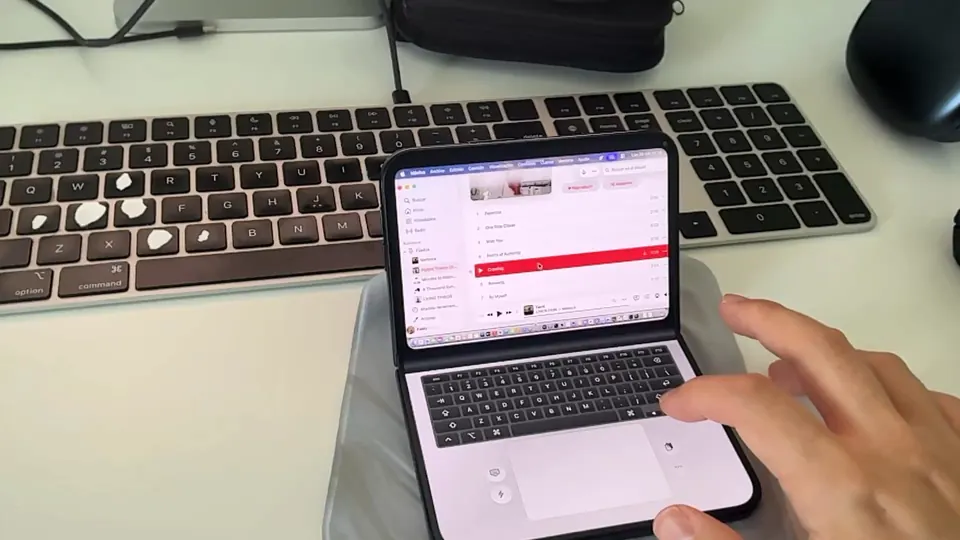
Your Mac above. A keyboard and trackpad below. Laptop Mode makes room for more on iPhone Duo.
Availability
Laptop Mode is available in Remoted 1.2.1 on iPhone Duo. The option does not appear on other devices.
Open Laptop Mode
- Connect to your Mac in Remoted on Duo. Open the remote toolbar’s ellipsis menu and choose Laptop Mode. It is off by default.
- Use the Duo with the screen above the keyboard and the hinge horizontal. Laptop Mode keeps its owning window in portrait orientation.
Keyboard, trackpad and layouts
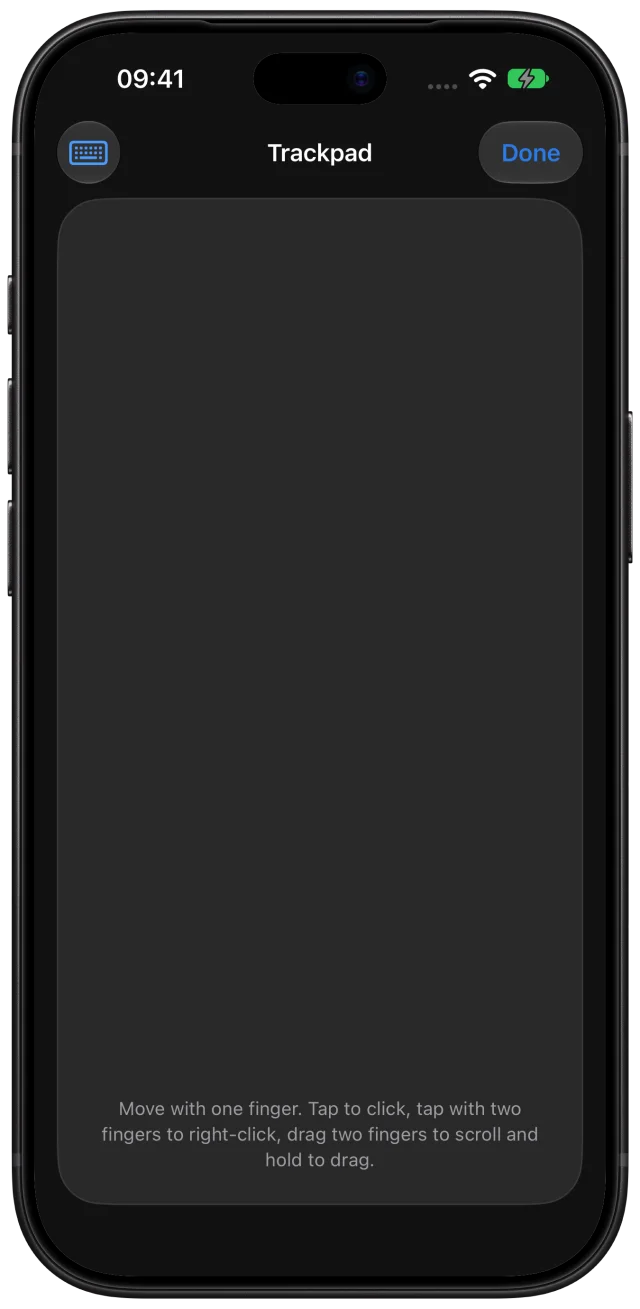
The keyboard button hides the keys to give the trackpad more room. Quick Actions and Clipboard remain beside it. In the deck’s ellipsis menu, open Layout, Trackpad settings or Sounds, or choose Exit Laptop Mode.
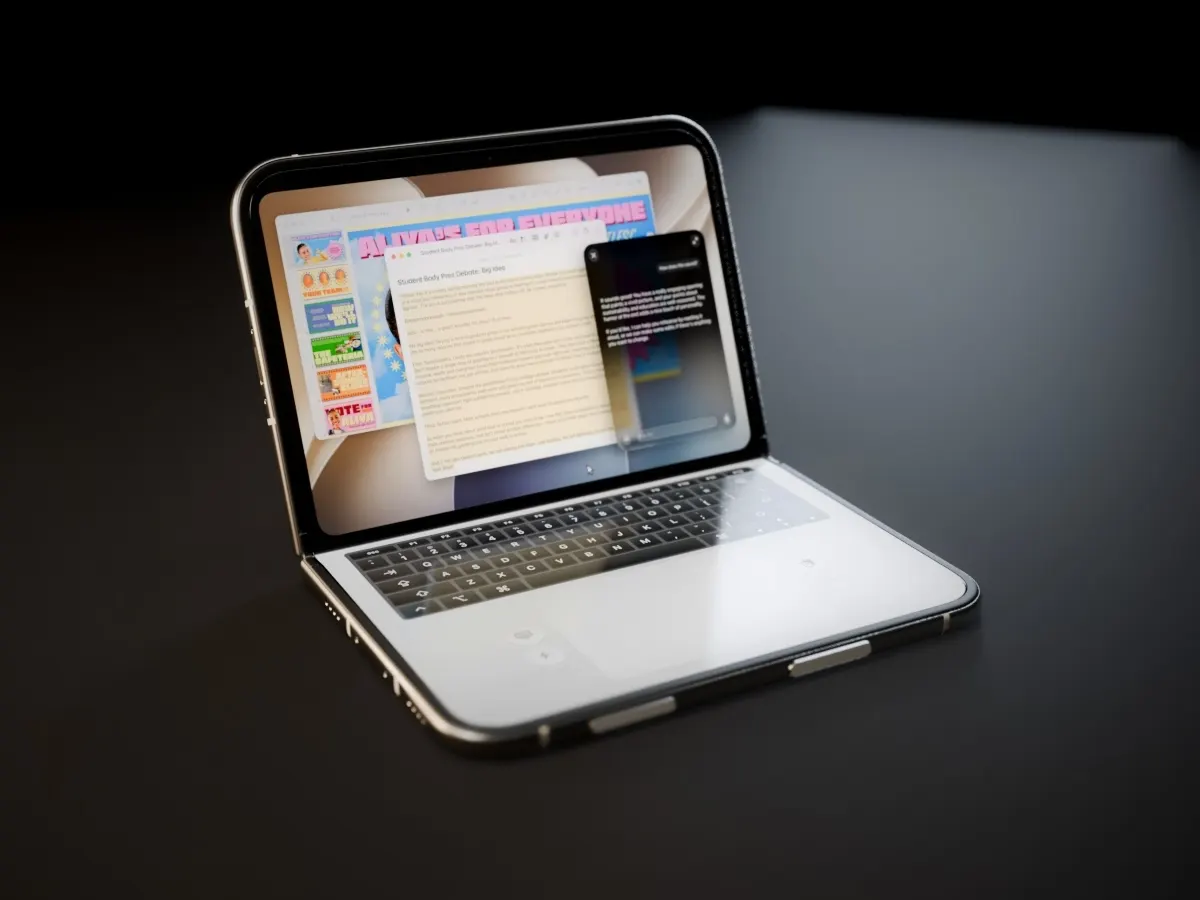
Choose Silver, Black or Classic in Layout. The finish and sound choices are remembered on your device. Closing the Duo suspends input while retaining the session; use Exit Laptop Mode to return to the ordinary desktop.
How the screen fits
In a supported single-display High Performance session, Laptop Mode can fit the desktop to the opening above the keyboard. Exiting restores your saved resolution preference. Standard, unsupported hosts and two-display sessions keep their existing configuration.