Mac and iPad
Sidecar vs. Universal Control vs. remote desktop on iPad
Choose the right way to use your Mac and iPad together. See which apps appear on each screen, what works nearby, and how to reach your Mac from another network.
Which tool fits your setup?
| Tool | Choose it when… |
|---|---|
| Sidecar | Your iPad should show Mac windows beside your Mac. Sidecar extends or mirrors the Mac desktop. |
| Universal Control | Your iPad should keep showing iPad apps while you share a keyboard and pointer with a nearby Mac. |
| Remote desktop | Your Mac is in another room or at home while you travel. Open its desktop from the iPad and send your input back to the Mac. |
Set up Sidecar for a second screen
Use the same Apple Account with two-factor authentication. For wireless use, keep the devices within 10 metres with Wi-Fi, Bluetooth and Handoff on. With USB, trust the Mac from the iPad. To extend your desktop, hover over a Mac window’s full-screen button and choose to move it to iPad.
Sidecar supports Apple Pencil, and macOS 27 with iPadOS 27 expands direct finger input in Mac windows and menus. That makes Sidecar a good fit for drawing next to your Mac.
Set up Universal Control for two separate workspaces
On Mac, open System Settings → Displays → Advanced and allow the pointer and keyboard to move between nearby devices. On iPad, turn on Cursor and Keyboard under Settings → General → AirPlay & Continuity. With both devices awake and unlocked, push the pointer past the edge of the Mac screen toward the iPad.
Universal Control also requires the same Apple Account with two-factor authentication, plus Wi-Fi, Bluetooth and Handoff on nearby devices. If both devices appear in the Mac’s Displays menu, choose the option that links the keyboard and mouse.
Try it with a Mac document on one screen and Notes or Files on the iPad. If the pointer crosses from the wrong edge, arrange the displays in Mac settings.
Open the Mac desktop when you’re away
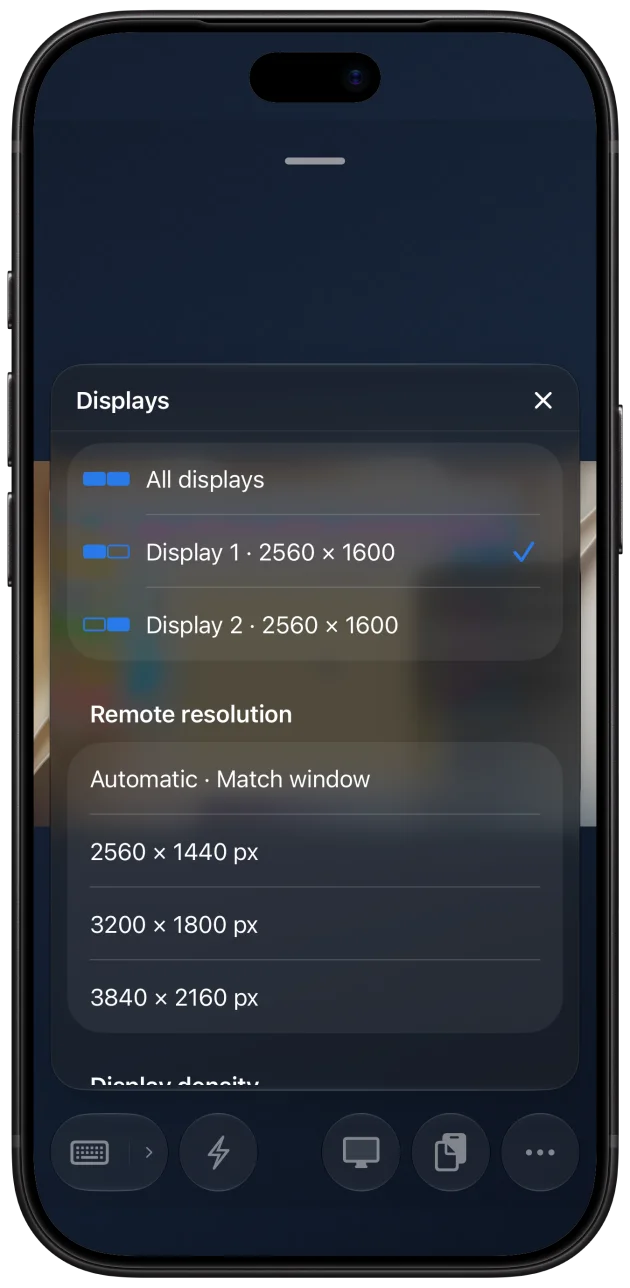
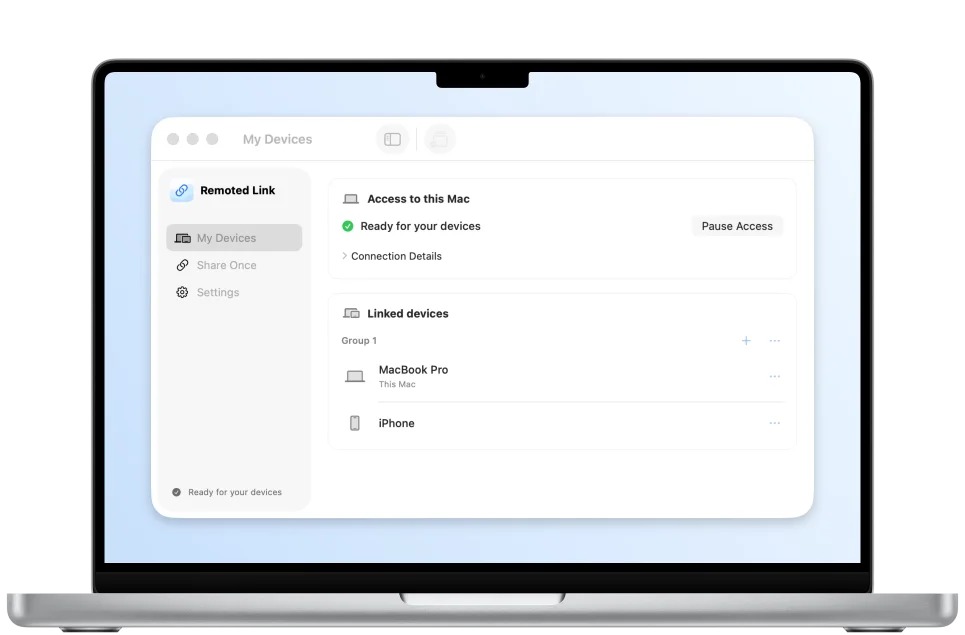
Use Remoted with Screen Sharing on a trusted local network, or pair with Remoted Link for access over the internet. The Mac runs the apps and needs to be reachable. On a compatible session, Native Touch sends up to two simultaneous touches to a selected Mac display from your iPad or iPhone.