Gamepad
Use a gamepad with your remote Mac
Pair the controller to your iPhone or iPad, then use a compatible Remoted Link session.
Availability and requirements
Controller forwarding is available in Remoted 1.2.1 with compatible Remoted Link and controller support enabled on the Mac. Connect to the existing Mac desktop. Compatibility depends on the game or emulator.
Play Mac games and emulators remotely
Your Mac runs the game or console emulator. Remoted brings its screen to your iPhone or iPad and sends your controls back.
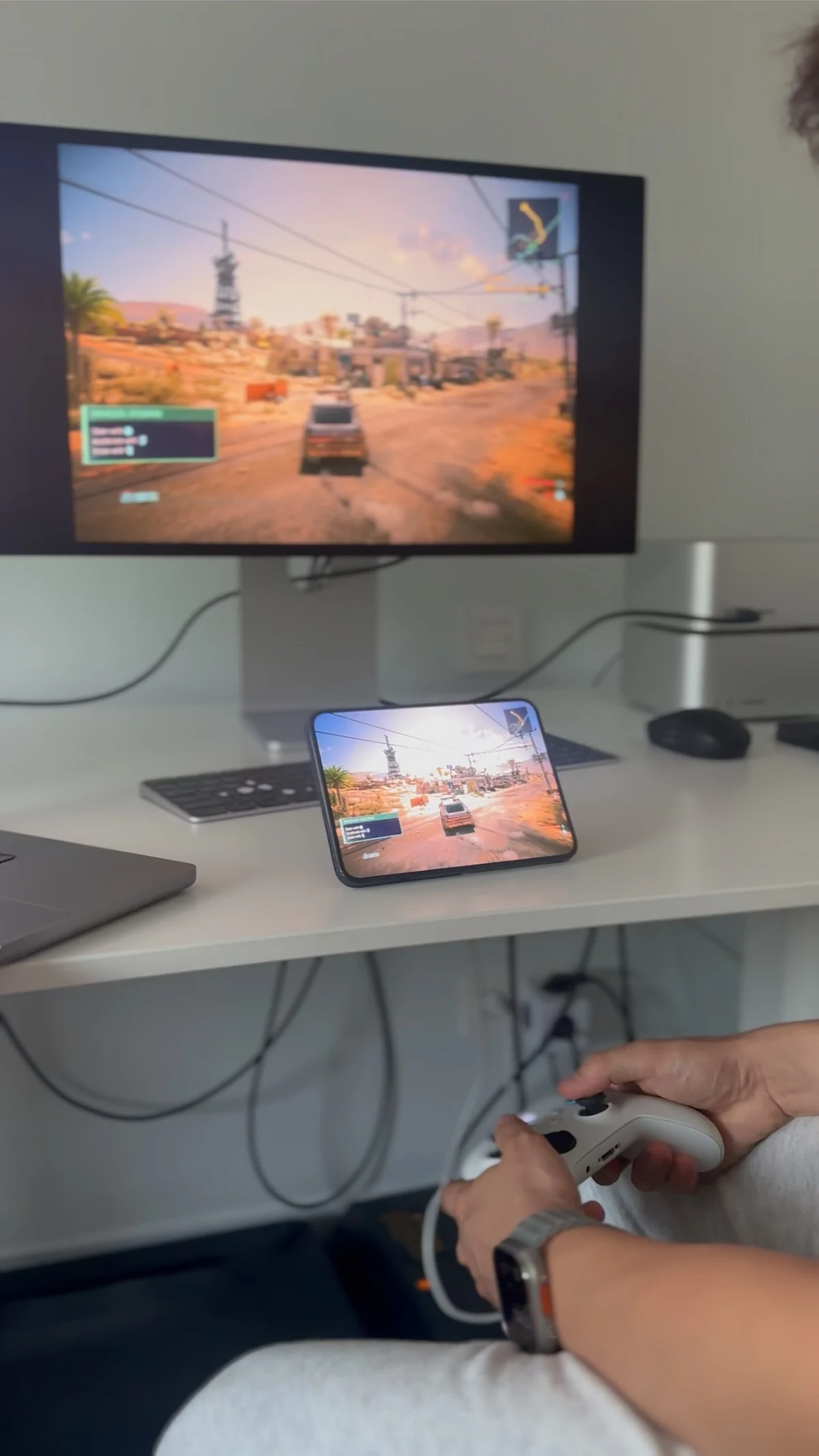
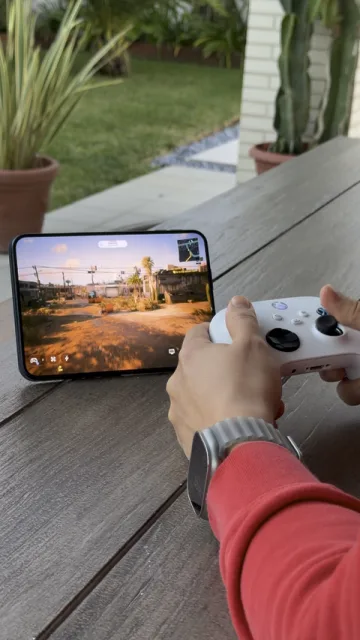
On your Mac
Game or console emulator
On your iPhone or iPad
Remoted
Open it on your Mac
Start your game or emulator and keep the Mac awake.
Connect through Link
Complete controller setup below, then connect to the existing Mac desktop.
Check the controls
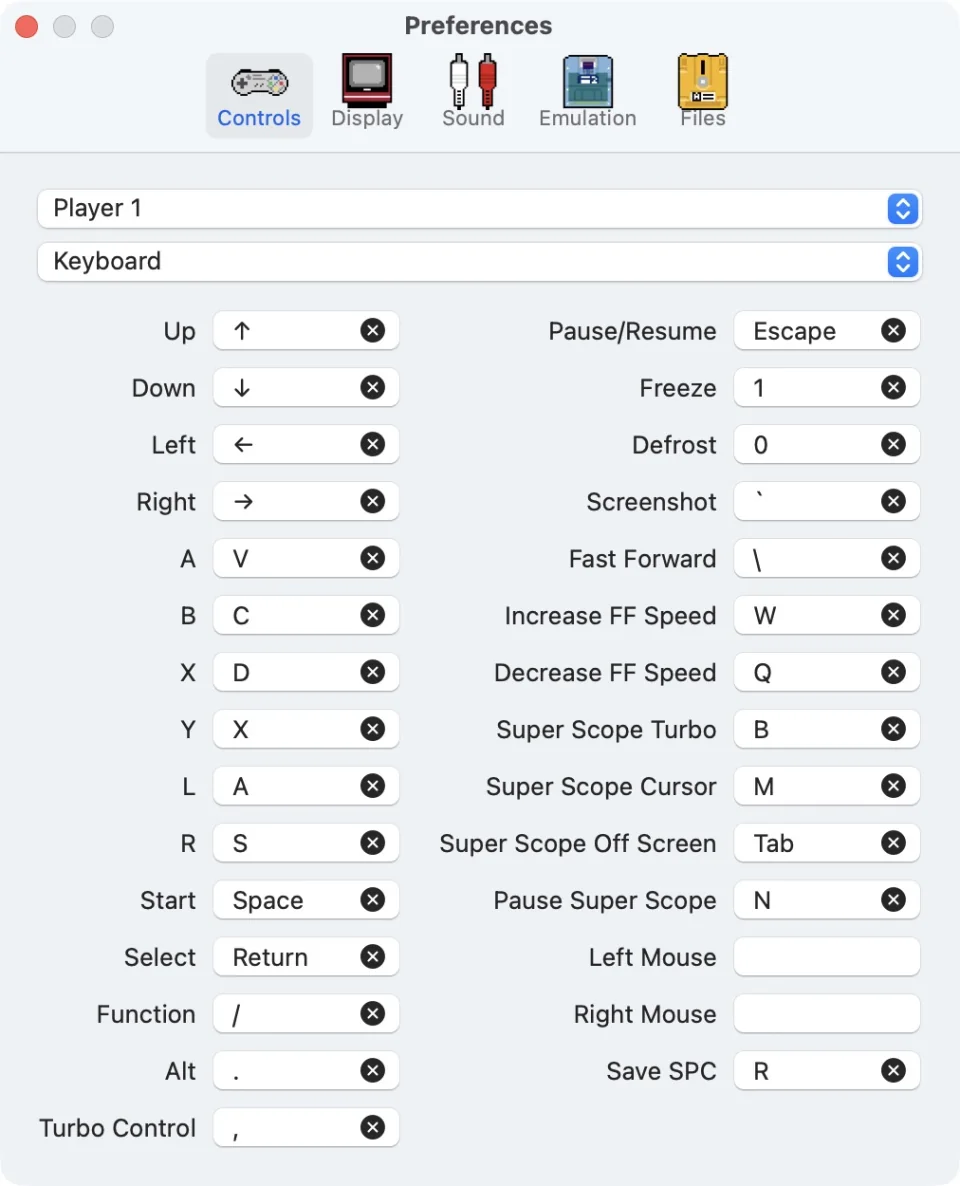
Select the controller in the game or emulator’s input settings. Map the buttons if needed.
Choose your controls
1. Pair the controller to your iPhone or iPad
- Put the controller in pairing mode using its manufacturer’s instructions. On the iPhone or iPad, open Settings → Bluetooth and select it.
- Keep it connected to the iPhone or iPad you use with Remoted. Pairing it only to the Mac does not test remote forwarding.

2. Prepare Link and connect
- Update Remoted Link to the latest version for built-in controller support.
- Open Controllers in Remoted Link on the Mac.
- Turn Game Controllers on. Use a controllable linked session on the existing Mac desktop. Open the game and keep Remoted active. Private High Performance virtual-display sessions do not provide the same controller path.
Check input and troubleshoot
Try buttons and sticks in the game’s own controller settings. A controller appearing in a device list does not prove that the game receives input. Feedback and extra buttons depend on the controller, game and installed builds.
If input stops, check Bluetooth, the Link controller setting and desktop focus, then reconnect. Do not install random drivers or expose Screen Sharing ports. A fast, stable network helps; this guide makes no latency or universal compatibility guarantee.