Virtual gamepad
Virtual gamepad: on-screen controls for iPhone and iPad
Use a virtual pad to control games on your remote Mac with your iPhone or iPad’s touch screen.
What does the virtual gamepad look like?
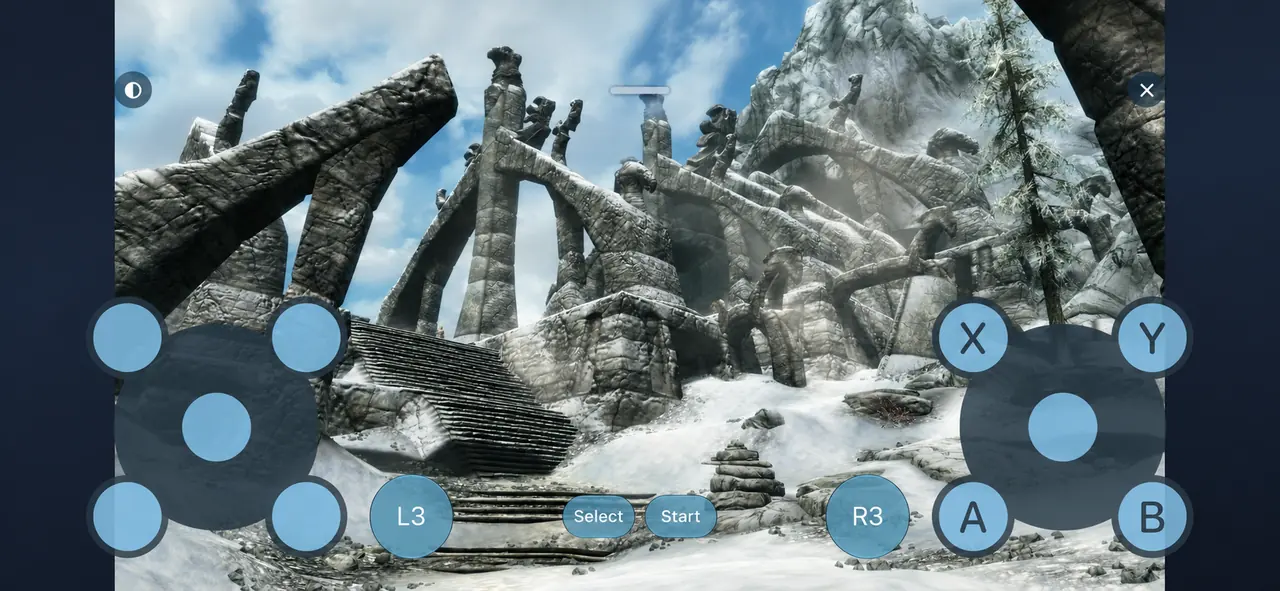
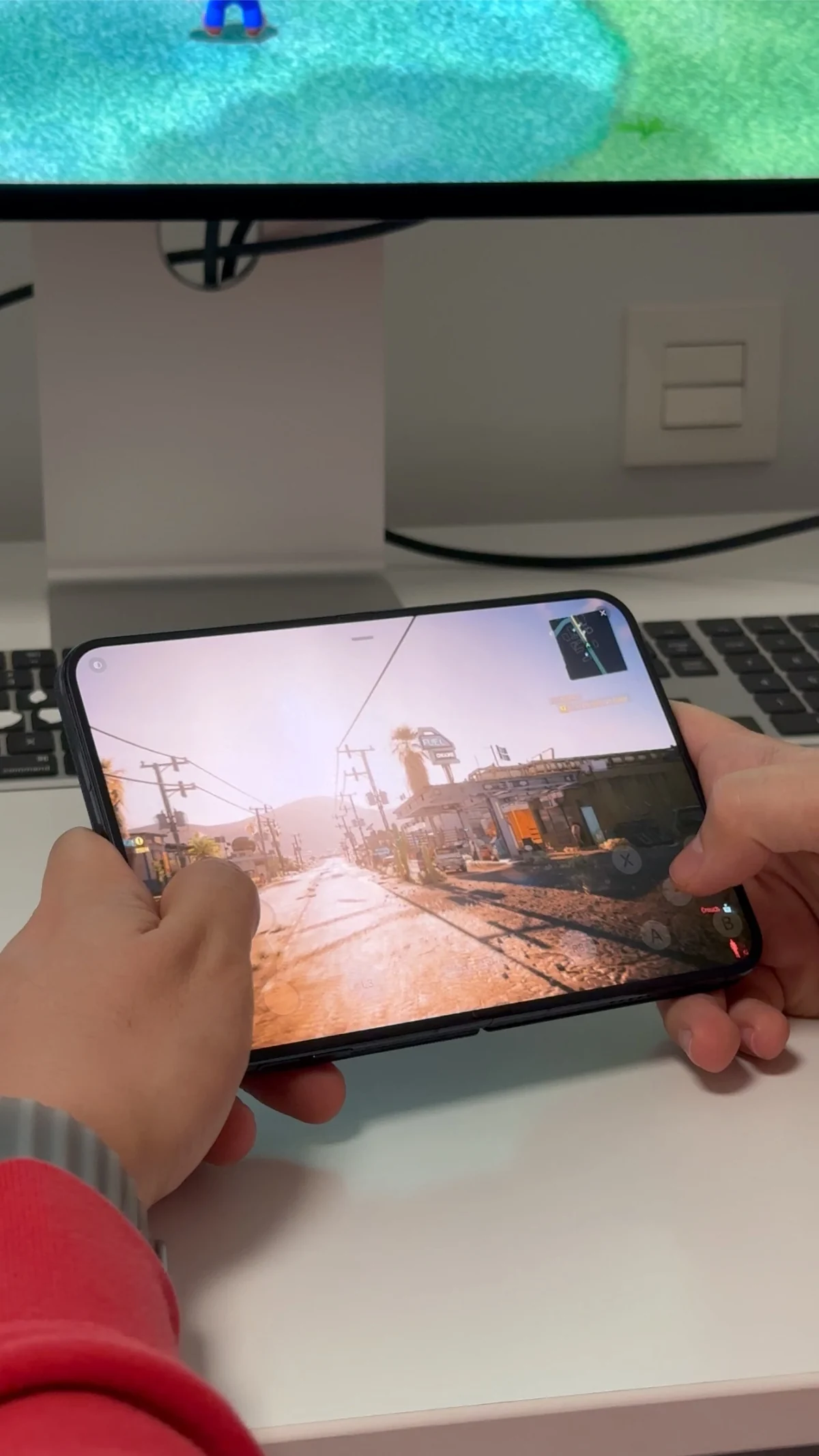
The on-screen controller places two touch sticks, A/B/X/Y, shoulder buttons and triggers over your remote desktop. L3 and R3 sit beside the native controls, with Select and Start between them. The game stays visible through the translucent virtual pad.
How to enable the on-screen gamepad
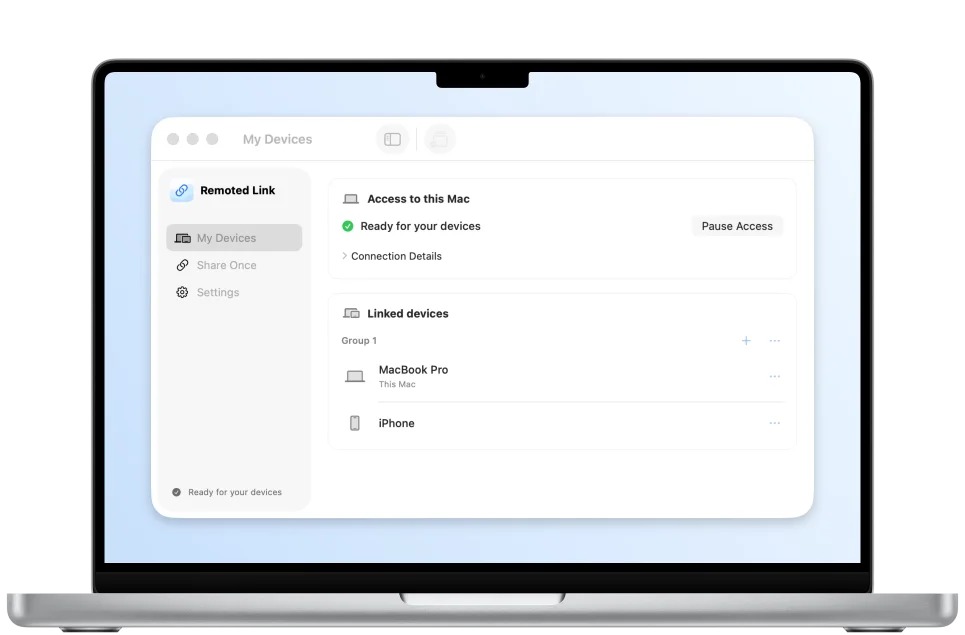
- Update Remoted and use a compatible version of Remoted Link. Enable controller support on your Mac and connect to its existing desktop through Link.
- Turn on game controllers in Remoted Link on the Mac. Use the gamepad setup guide for the steps that match your Link version.
- In the session toolbar, tap the down arrow on the input button to open Input Controls. Choose On-Screen Gamepad.
- Back in the toolbar, tap the gamepad icon to show the controls.
Adjust opacity or hide the virtual pad
Open the three-dot menu at the upper left and choose Gamepad Opacity. Pick 20%, 40%, 60%, 80% or 100%. The default is 40%, so you can see the game beneath the buttons.
Tap X at the upper right to hide the gamepad and bring back the usual toolbar. Your opacity choice is retained when you show it again in the same session. The on-screen gamepad starts off in each new session.
Prefer a physical gamepad?
You can also pair a supported controller to your iPhone or iPad. Connecting one hides the virtual controls; after disconnecting it, you can turn the virtual pad on again.